Tuesday, August 5, 2025

Installing and Setting Up Microsoft SQL Server Express : Close Windows Services and Task Manager applications before installing

This section provides information for administrators with limited experience with Microsoft SQL Server. The following steps assume you do not have Microsoft SQL Server installed and guide you through downloading and configuring the free Microsoft SQL Server Express edition.

Downloading and Installing Microsoft SQL Server Express and Microsoft SQL Server Management Studio

Before you begin

  • Decide where to install Microsoft SQL Server.
  • Note the connection string as it appears in the installation process. You need it later when installing SOTI Connect.
Important: Close Windows Services and Task Manager applications before installing.

Procedure

  1. Download Microsoft SQL Server 2019 Express to your local machine.
    Note: If you encounter installation issues, update Windows and reboot. Repeat updating and rebooting until there are no more updates to install.
    Note: You may need to restart Microsoft SQL Server multiple times during the installation process for security changes to take effect.
  2. Run the Microsoft SQL Server Express .exe file on your local machine.
  3. Select the Basic installation type to download Microsoft SQL Server Express and all related utilities.

    SQL Server 2019 Express Edition Basic installation selection

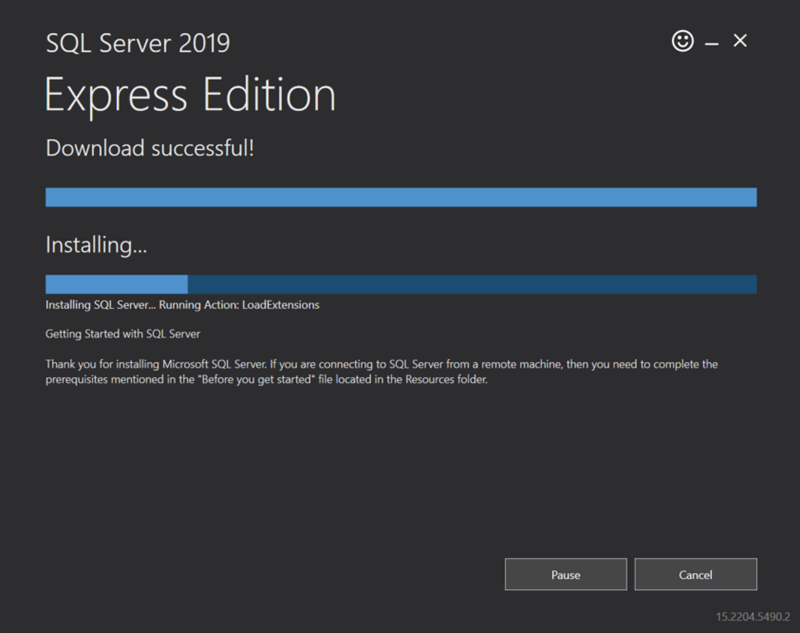
  4. Accept the license terms and conditions. Keep the default installation location (on the C: drive), then select Install.Installing Microsoft SQL Server Express
    The installer downloads and installs all the required Microsoft SQL Server Express packages. When everything has been installed successfully, a notification page similar to the following displays:
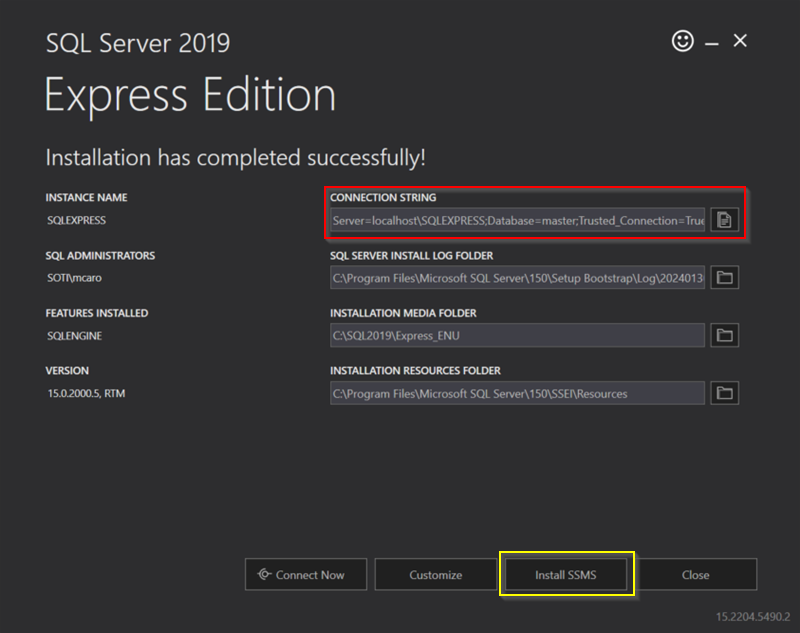
    SQL Server successful installation notification page
    Note: Take note of the Server value in the Connection String field (red box). You need it when installing SOTI Connect
  5. On the successful installation notification page, select the Install SSMS button (yellow box in the screenshot above) to download and install Microsoft SQL Server Management Studio.
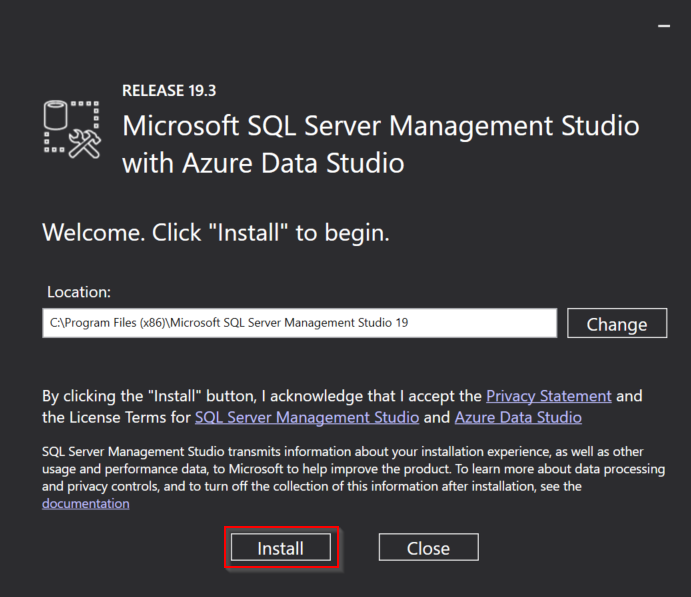
  6. When the Microsoft SQL Server Management Studio installation .exe file finishes downloading, run the .exe file. In the installer window, select where you want to install the Microsoft SQL Server Management Studio. Keep the default installation location on the C: drive.
  7. Select Install.

    SQL Server Management Studio main installation page

    When the installation completes, the Setup Completed screen displays.
  8. Close all applications and restart the server or VM.

Configuring Microsoft SQL Server to Work with SOTI Connect

Procedure

  1. Open the Microsoft SQL Server Management Studio.
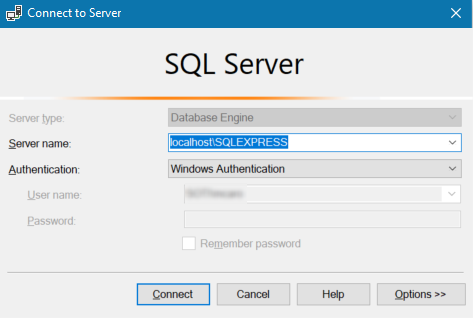
  2. Establish a connection to the Microsoft SQL Server instance by entering the Server value in the Connection String you noted in Step 4 of the Downloading and Installing Microsoft SQL Server Express and Microsoft SQL Server Management Studio section.
  3. Select Connect.

    SQL Server Connect to Server dialog box

  4. Microsoft SQL Server connects successfully, and the instance name displays.
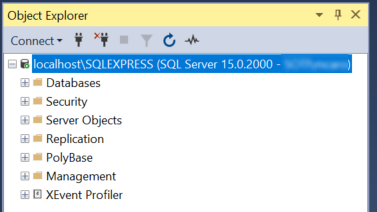
    SQL Server instance appearing in Object Explorer list
  5. Right-click the instance name and select Properties.
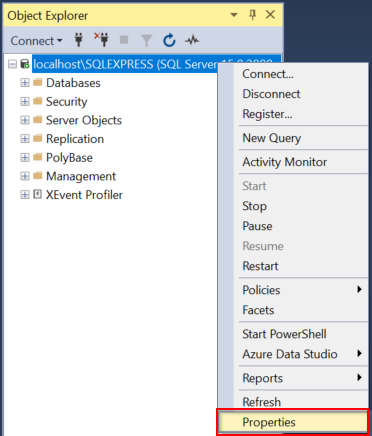
    SQL instance right-click menu with Properties selection highlighted

  6. In the left panel, select Security.
  7. In the Server Properties panel, select SQL Server and Windows Authentication mode in the Server authentication section. Select OK to save your changes.
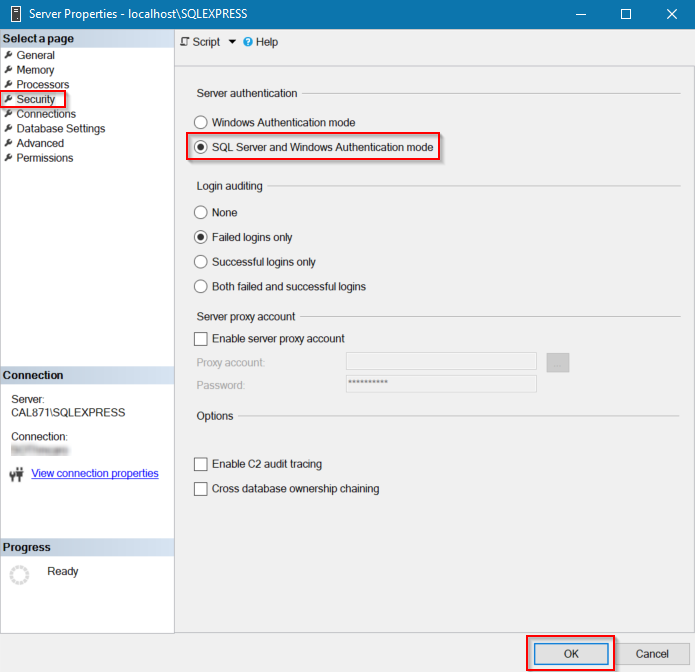
    SQL Server properties screen with authentication mode selected

  8. Decide whether you want to use a local SQL account or a Windows account for authentication. The following steps describe configuring a local account.
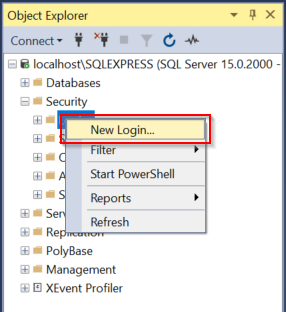
  9. Expand the Security folder and right-click Logins.
  10. Select New Login.

    SQL Server New Login selected

  11. Enter a Login name, in this example Login name is SQLConnect.
  12. Select SQL Server authentication, and create a password for the login.
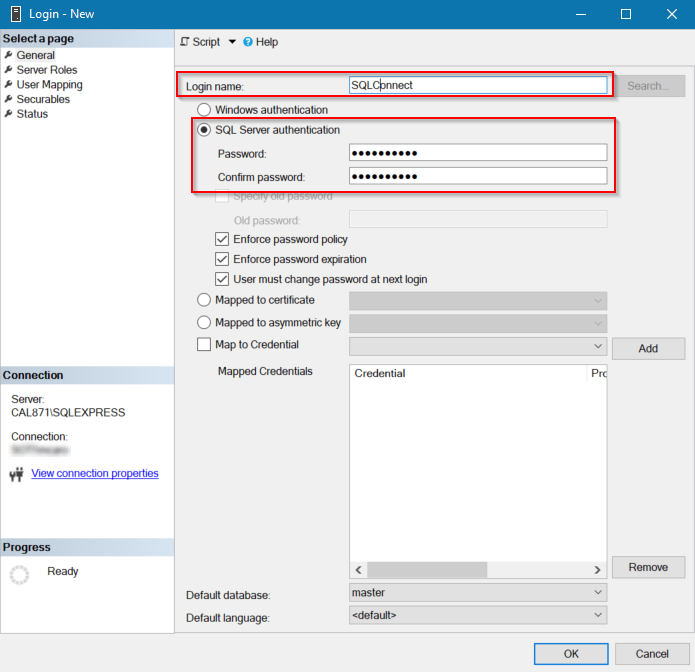
    Entering a SQL Server password
  13. In the left panel, select Server Roles, select the sysadmin checkbox, and select OK.
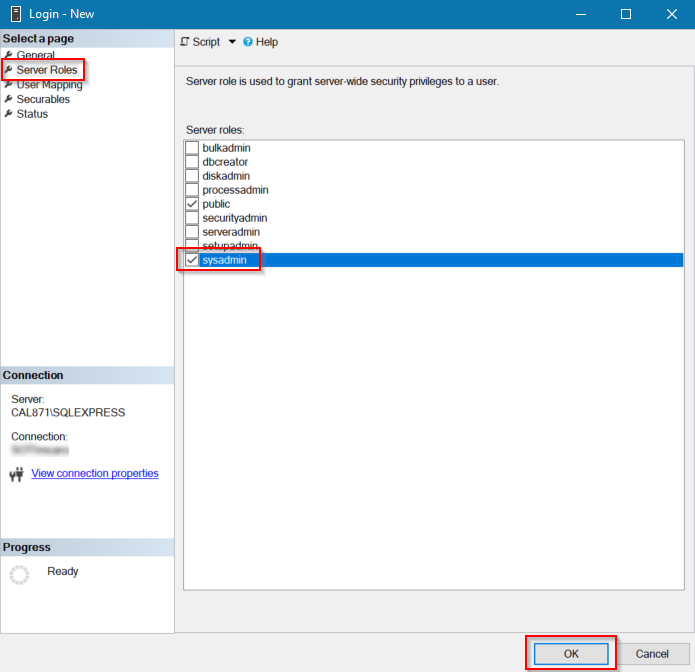
    Sysadmin checkbox selected in the New Login screen

  14. A new local login account is created and displays under the Logins header in the left panel.
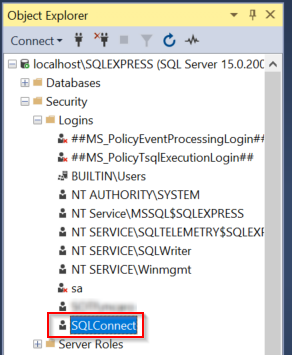
    List of new SQL logins
    Important: Use this login for your database when you install SOTI Connect.
  15. Ensure NT AUTHORITY\SYSTEM has the sysadmin role assigned to it. Right-click NT AUTHORITY\SYSTEM and select Properties. Select the sysadmin checkbox under Server Roles.
    Note: Use this login if installing SOTI Connect using Windows Authentication. If the database runs on a remote server, the login is not be NT Authority\System. It is MachineName$ (for example, domainname\computername).
  16. Keep Microsoft SQL Server Management Studio running, then run the Microsoft SQL Server Configuration Manager utility, included as part of Microsoft SQL Server Express.
  17. In the Microsoft SQL Server Configuration Manager utility, expand SQL Server Network Configuration and select Protocols for SQLEXPRESS.
    Note: Select the correct protocol for your SOTI Connect instance if it is different the Protocols for SQLEXPRESS.
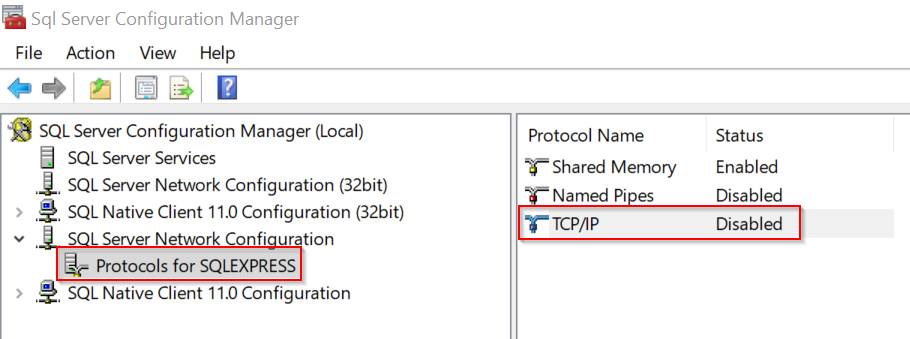
    SQL Server protocol screen

  18. Right-click the TCP/IP protocol and enable the TCP/IP protocol.
  19. Right-click the TCP/IP protocol again and then select Properties. The TCP/IP Properties panel displays.
  20. In the TCP/IP Properties panel, select the IP Addresses tab, empty any IP TCP Dynamic Ports fields and set the IPAII TCP Port to 1433.
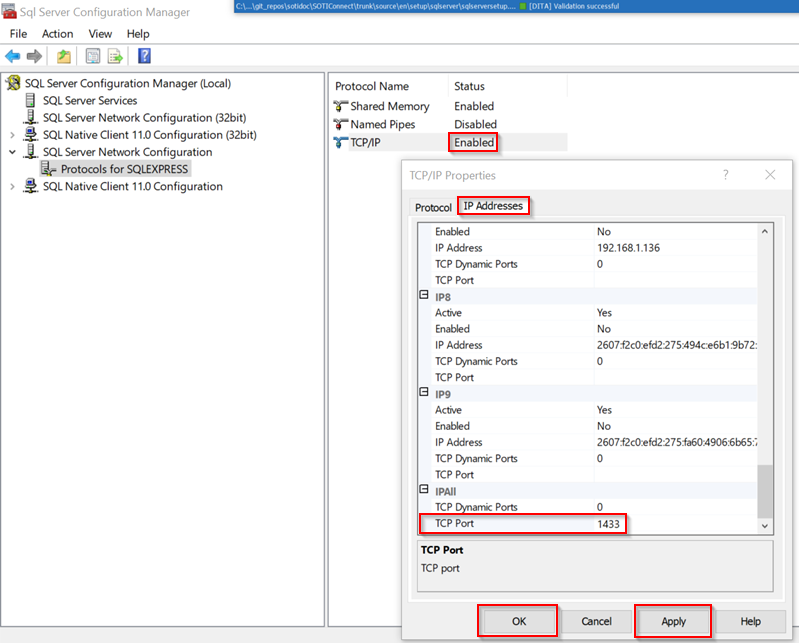
    Selection screen for TCP/IP protocol
  21. Select Apply, then select OK.
  22. Restart your Microsoft SQL Server instance and Microsoft SQL Server Management Studio to apply your changes.

SQL Server Security Notes

The following information discusses securing access to the database and minimizing permissions.

The installation of SOTI Connect, requires more database privileges than needed for normal working operation. You should reduce the level of access after the installation of Microsoft SQL Server is complete. Use the following table as a reference to the required access levels after the installation is complete.

OperationRequired Database Privileges
Installing or upgradingSysadmin. The SA account is a super admin with permissions for any scenario.
Normal working operationdb_owner.
Service running as local system with DB installed on the same serverLocal System > NT AUTHORITY\System.

The service runs on the computer with this permission.

Note: NT needs Sysadmin during an upgrade.
Service running as local system with the DB installed on a remote serverdb_owner.

UsingMicrosoft SQL Server, add the user or the group containing the user to the db_owner role.

Note: The database does not use the local system or NT AUTHORITY\System, but becomes MachineName$ (for example, domainname\computername).
Service running as a service accountEnsure the user account is also in the DB as an account with the correct permissions.

For example, if the user account samplecompany/ConnectMDM is running the service, ConnectMDM with the domain samplecompany, the account must be given the needed permissions.

If you used the Microsoft SQL Server authentication option (for example, when you created the SQLConnect login in the example above), you should remove the sysadmin role after completing the SOTI Connect installation. You should also confirm that the SQLConnect login has db_owner user mappings for all the SOTI Connect databases.
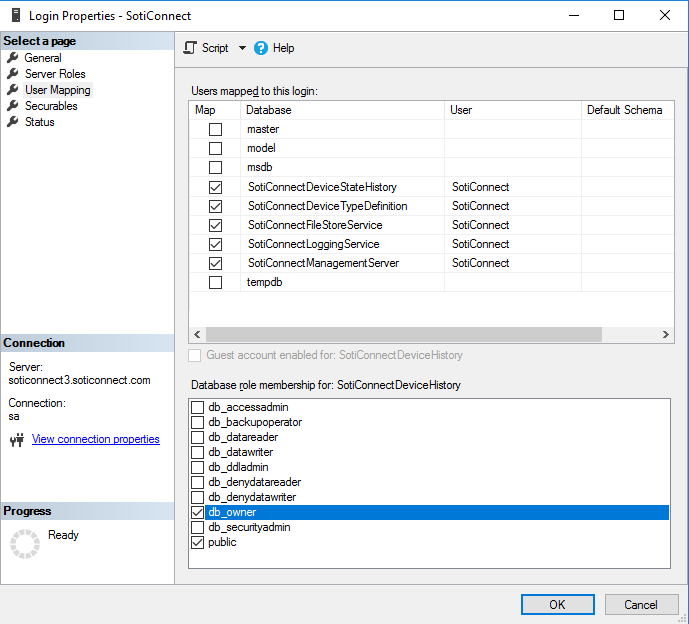
Note: You must restore the sysadmin role to the SQLConnect user before running the SOTI Connect installer again.

If you used the Windows authentication method to install SOTI Connect, you should remove the sysadmin role from the NT AUTHORITY/SYSTEM login. You should also confirm that this login has db_owner user mappings for all the SOTI Connect databases.
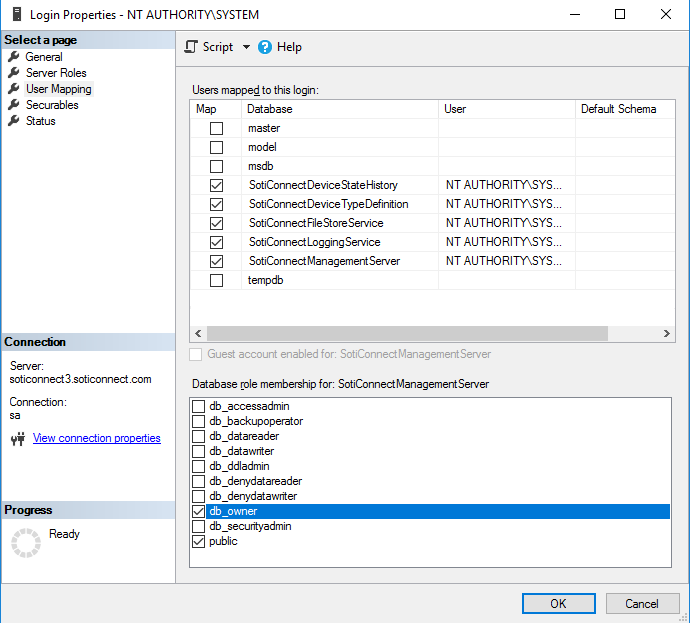
Microsoft SQL Server stores the SOTI Connect databases. Creating, updating, and deleting a database is associated with its owner service. When uninstalling SOTI Connect, you can either retain all the databases or just the 'SOTIConnectDeviceStateHistory' and 'SotiConnectLoggingService' databases.
Important: Due to the possible encryption of some files, you must retain the File Store database to keep access to File Store files after uninstalling SOTI Connect.

You should also remove the sysadmin role from the user who ran the SOTI Connect installer. You must restore the sysadmin role to that user before running the SOTI Connect installer again.


===============================================================


"This Content Sponsored by SBO Digital Marketing.

Mobile-Based Part-Time Job Opportunity by SBO!

Earn money online by doing simple content publishing and sharing tasks. Here's how:

  • Job Type: Mobile-based part-time work
  • Work Involves:
    • Content publishing
    • Content sharing on social media
  • Time Required: As little as 1 hour a day
  • Earnings: ₹300 or more daily
  • Requirements:
    • Active Facebook and Instagram account
    • Basic knowledge of using mobile and social media

For more details:

WhatsApp your Name and Qualification to 7338068894

a.Online Part-Time Jobs from Home

b.Work from Home Jobs Without Investment

c.Freelance Jobs Online for Students

d. Mobile-Based Online Jobs

e.Daily Payment Online Jobs

Keyword & Tag: #OnlinePartTimeJob #WorkFromHome #EarnMoneyOnline #PartTimeJob #jobs #jobalerts #withoutinvestmentjob"


Tuesday, July 29, 2025

Microsoft SQL Server : SQL Server Instance, SQL Server Service, SQL Server Agent, Virtual Machine, Relational Database Management System

SQL Server is a relational database management system software that runs on Windows or Linux on a physical or virtual hardware platform to support applications and users. SQL Server would be considered the highest level in the overall hierarchy, supporting databases, data, security, high availability, reporting, and business intelligence.

Some people refer to SQL Server as the hardware platform, others as software or an application. And still others refer to SQL Server as the database engine.

Current versions include SQL Server 2019, SQL Server 2017, SQL Server 2016, 2014, etc. for Enterprise Edition, Standard Edition, Developer Edition, Express Edition, and Web Edition.


SQL Server Instance

A SQL Server instance is an installation of the SQL Server relational database platform that can be considered the highest level in the software hierarchy.  The SQL Server instance encapsulates all of the database concepts (database, tables, data, stored procedures, security, etc.) covered in this article.

A single server (i.e., hardware platform) can have numerous SQL Server instances installed, each of which can be completely autonomous, but share the underlying CPU, memory, network, and storage resources.  This configuration can be used for Production, Quality Assurance \ Testing \ User Acceptance Testing,g and\or Development.  This is a separate configuration from virtualization.

Additional Information:

  • How and why would I use multiple instances of SQL Server

SQL Server Service

The SQL Server Service is the main Windows service that controls whether the SQL Server instance is started or stopped.  Each SQL Server instance has a corresponding Windows service.  This Windows service can be configured to run with a domain account to access resources on the network or a local system account.

Additional Information:

  • Windows Services for SQL Server
  • How to stop and start SQL Server services

SQL Server Agent

SQL Server Agent is responsible for running Jobs on a predefined schedule. Jobs can include T-SQL, PowerShell, SSIS, Python, R, DOS, MDX, etc. commands. Operators can be configured and notified via email or text when a Job completes, fails or succeeds. SQL Server Agent also includes Alerts that can be configured for when performance or operational thresholds are met.

Additional Information:

  • SQL Server Agent Job Management
  • Getting Started with SQL Server Agent – Part 1
  • Accessing SQL Server Agent Data

 Virtual Machine

A Virtual Machine is an independent operating system and SQL Server installation with management similar to a SQL Server.  The difference is that there is a virtualization layer between the physical hardware and the virtual machine.  A single Host will support numerous Guests (virtual machines).

Virtualization is used to consolidate numerous independent machines onto a single hardware platform to reduce power and resource costs.  Each server remains a separate entity that still requires management and maintenance.  Windows and SQL Server licensing is still required for each virtual machine.

Additional Information:

  • SQL Server Virtualization Overview (Part 1 of 5)
  • Virtual Server Technologies and SQL Server

Host

A Host is the hardware platform (i.e., server) with the virtualization software to support one or many Guest virtual machines.

Guest

A Guest is an independent virtual machine with an operating system and SQL Server installed.

VMWare

At the time of writing, VMWare is the most used virtualization platform to support virtualized environments.

Relational Database Management System

SQL Server is one of many Relational Database Management Systems on the market, such as Oracle, PostgreSQL, Azure, Azure SQL Database, MySQL, etc. The Relational Database Management System manages all of the databases, data, transactional integrity, security, user access, etc. This could be for data warehouse projects, business intelligence, and more.

SQL Server Database

A database is a logical container for data, structures, and code with a specific name.  A single database can support one or more applications and users.  Permissions can be granted at the database level, but permissions are generally better suited to be granted to an application that a user needs at the object level, such as a stored procedure, table, or view.

In SQL Server, there are both system and user-defined databases.  At the most basic level, a database consists of two physical files.  First is for the database objects and data.  The second file is for the transaction log, which is used to maintain transaction integrity as numerous users and applications are adding, removing, and modifying data within the database.

Additional Information:

  • Create SQL Server Database using SQL Server Management Studio

SQL Server System Database

The SQL Server system databases are responsible for particular functions of the underlying relational database management system, which include:

  • Master – All system objects to run the active relational database management system
  • Model – Template database for new user-defined databases and Tempdb when SQL Server starts
  • TempDB – Stores all temporary objects such as #temp tables, ##temp tables, hash and sort records, etc.
  • MSDB – Stores all SQL Server Agent-related tables and stored procedures
  • ResourceDB – Hidden and read-only database that includes all system objects

Additional Information:

  • SQL Server System Databases

SQL Server User Database

A SQL Server user-defined database is created to support a specific application, such as CRM, eCommerce, Inventory, Reporting, etc.  Each user-defined database on a SQL Server instance has a unique name and has a database owner who is generally the login who created the database.  The User Defined database has one or more schemas, and each schema has tables, indexes, stored procedures, views, functions, and more.

MDF File in SQL Server

The SQL Server MDF file is one of two core files to support a physical SQL Server database.  The MDF file is responsible for storing the system objects, user-defined object definitions (i.e., tables, views, stored procedures, etc.), data, and indexes.  Each SQL Server database must have an MDF file, and only one MDF file can exist per database.  The MDF file generally is the largest file supporting the database since the size of the data should be much larger than the space needed to support the transaction log.

NDF File in SQL Server

A SQL Server NDF file is a secondary data file to support a physical SQL Server database.  Although it is not mandatory for a SQL Server database, an NDF file can support tables and indexes.  NDF files are created for SQL Server databases to store a database across numerous disk drives to improve performance or support the database growth.

LDF File in SQL Server

The SQL Server LDF file is the second of two core files to support a physical SQL Server database.  The LDF file supports the database transaction log, which stores before and after versions of records to enable a transaction to rollback.  The LDF file is generally a fraction of the database file size, perhaps five to twenty-five percent of the database.  There are circumstances with large transactions where the transaction log file may need to be sized larger. 

SQL Server Database Transaction Log File

The SQL Server Transaction Log File corresponds to the physical LDF file supporting the database.  The SQL Server Transaction Log File is responsible for storing before and after records of data involved in UPDATE or DELETE transactions in order to roll back the transactions to maintain transactional integrity with numerous users in the database.

SQL Server Schema

A schema is a logical container within a database to grant permissions to particular objects.  By default, each SQL Server database has a dbo and sys schema.  Although user-defined objects can be created in the dbo schema, it is generally recommended to create a separate schema for each logical application, such as sales, inventory, accounting, etc.

SQL Server Table

A table is a logical structure to store data related to a single entity, such as a customer, product, order, etc.  Each table has one or more columns.  Each column should be configured with the appropriate data type and null setting.

Row in a SQL Server Table

A single record in a table that consists of multiple columns.

SQL Server Data Types

Data types are defined for columns in tables and parameters for stored procedures, functions, and queries.  The data type determines the acceptable data for the column or parameters.  It is prudent to select the appropriate data type for your columns and parameters to minimize the amount of storage that is needed at a table level and avoid implicit or explicit conversion issues which could be a performance problem in the long term.  Common data types are INT, DATETIME, VARCHAR(), CHAR(), etc.

NULL in SQL Server

Null is an unknown value.  A column in a table can be configured to allow a null value or not

Referential Integrity in SQL Server

Referential integrity maintains consistent data from a primary key on one table to a foreign key on a related table.  For example, with an Orders table the primary key could be OrderID.  A related table could be OrderDetails, which should include the OrderID column from the Orders table.  On the OrderDetails table, the OrderID column would be the foreign key related back to the OrderID column from the Orders table.

SQL Server Primary Key

A primary key is generally a single column, but could be two or more columns, that uniquely identifies a row in a table.  A table should have a primary key to uniquely identify each row.

SQL Server Foreign Key

A foreign key is generally a single column, but could be two or more columns, that relates to another table to ensure data is consistent.

SQL Server Indexes

SQL Server indexes are physical structures that are built to improve data access performance.  Without an index, a table scan will occur, which means the SQL Server Query Processor is scanning the table from the first to last row to complete the query.  This is an expensive operation with a significant amount of data and a significant user base.

SQL Server indexes should be chosen wisely based on the data access patterns.  Having too many or duplicate indexes is counterproductive and will impact the performance of INSERT, UPDATE and DELETE operations as well as excessive storage.  Indexes also need to be maintained (rebuilt or reorganized) on a regular basis, either weekly, monthly or quarterly.

SQL Server ships with numerous types of SQL Server indexes that all provide specific value based on the need.  The SQL Server indexes include:

  • Clustered Index
  • Non Clustered Index
  • Covering Index
  • Included Columns
  • Filtered Index
  • ColumnStore Index
  • Full Text Index
  • XML Index

SQL Server Clustered Index

A SQL Server Clustered Index brings physical and logical order to a table.  There is a single SQL Server clustered index created per table.  Typical columns are a unique ID, such as the Primary Key for the table or date column, such as OrderDate.  It is a best practice to create a clustered index for most tables to improve data access performance when querying the table.

============================================================

"This Content Sponsored by SBO Digital Marketing.

Mobile-Based Part-Time Job Opportunity by SBO!

Earn money online by doing simple content publishing and sharing tasks. Here's how:

  • Job Type: Mobile-based part-time work
  • Work Involves:
    • Content publishing
    • Content sharing on social media
  • Time Required: As little as 1 hour a day
  • Earnings: ₹300 or more daily
  • Requirements:
    • Active Facebook and Instagram account
    • Basic knowledge of using mobile and social media

For more details:

WhatsApp your Name and Qualification to 7338068894

a.Online Part Time Jobs from Home

b.Work from Home Jobs Without Investment

c.Freelance Jobs Online for Students

d. Mobile-Based Online Jobs

e.Daily Payment Online Jobs

Keyword & Tag: #OnlinePartTimeJob #WorkFromHome #EarnMoneyOnline #PartTimeJob #jobs #jobalerts #withoutinvestmentjob"

====================================================================

Monday, July 21, 2025

How the Internet Works :What Is the Internet? IP Addresses and DNS, How Data Travels Across the Internet, Internet Infrastructure and ISPs

The internet is a vast network that connects billions of devices worldwide, enabling communication, commerce, education, and entertainment. Although it may seem simple on the surface—click a link and a website appears—the behind-the-scenes processes are intricate and fascinating. This article explores the inner workings of the internet under seven key headings.


What Is the Internet?

The internet is a global network of interconnected computers and servers. It uses standardized communication protocols to enable devices to "talk" to each other. Think of it as a digital highway system where data (information) is constantly traveling from one place to another.

The internet itself is not the web—the World Wide Web (WWW) is just one of many services (like email, file transfer, or video streaming) that run on the internet. At its core, the internet is a physical infrastructure made up of fiber-optic cables, routers, servers, satellites, and wireless signals.

IP Addresses and DNS

Every device on the internet has a unique identifier known as an IP address (Internet Protocol address), similar to a home address. IP addresses allow data to be sent and received correctly.

Since IP addresses are complex (like 192.168.1.1), we use domain names (like google.com) to make it easier for humans. The Domain Name System (DNS) acts like a phonebook that translates domain names into IP addresses.

For example:

You type www.google.com

DNS finds the IP address (like 142.250.190.4)

Your computer connects to that address to retrieve the website

How Data Travels Across the Internet

Data on the internet travels in small units called packets. When you send an email or stream a video, your data is broken into these packets, which travel across the network separately and are reassembled at the destination.

The journey of each packet involves:

Routers, which direct packets toward their destination.

Switches, which connect devices within a network.

Cables and satellites, which physically transmit the data.

The internet uses TCP/IP protocols to manage this process. TCP (Transmission Control Protocol) ensures data is sent and received in the correct order, while IP (Internet Protocol) routes the data.

Servers and Clients

The internet functions on a client-server model. A server is a powerful computer that hosts websites, files, or services. A client is a device (like your phone or laptop) that accesses the server.

Here’s what happens when you visit a website:

Your device (client) sends a request to the web server

The server processes the request and sends back the needed data

Your web browser displays the information

This back-and-forth happens in milliseconds and is repeated millions of times every second around the globe.

Web Browsers and HTTP

A web browser (like Chrome, Firefox, or Safari) is software that retrieves and displays content from the web. It uses HTTP (Hypertext Transfer Protocol) or its secure version, HTTPS, to communicate with servers.

When you enter a website URL:

The browser checks DNS to get the IP address

It sends an HTTP request to that IP address

The server responds with HTML, CSS, images, or videos

The browser renders the page for you to see

HTTPS adds an extra layer of security by encrypting data, preventing hackers from intercepting sensitive information like passwords or credit card numbers.

Internet Infrastructure and ISPs

Behind the scenes, the internet is powered by a combination of hardware infrastructure and Internet Service Providers (ISPs).

ISPs, such as Comcast, AT&T, or Airtel, are companies that connect you to the internet.

Data centers are huge facilities filled with servers that store and distribute content.

Undersea cables stretch across oceans to connect continents.

Internet exchange points (IXPs) allow ISPs to share traffic directly.

All of this is overseen by organizations like:

ICANN (assigns domain names)

IETF (develops protocols)

W3C (sets web standards)

Security, Privacy, and the Future

As more of our lives move online, internet security and privacy have become vital. Technologies like:

Encryption (scrambles data to prevent theft)

Firewalls (block unauthorized access)

VPNs (hide your online identity)

...all help protect users from cyber threats.

The future of the internet includes:

5G and beyond, for faster mobile connections

IoT (Internet of Things), connecting everyday devices like fridges and watches

AI-driven networks, optimizing speed and efficiency

Decentralized web (Web3), aiming to give users more control over their data

But challenges remain, such as:

Digital divide (lack of access in some areas)

Censorship and surveillance

Cybercrime and misinformation

Conclusion

The internet is an incredible system made up of complex layers of technology and cooperation. From sending a simple email to streaming global content in real-time, it's all powered by a network of devices, protocols, and infrastructure that work silently behind the scenes. Understanding how it all functions helps us use it more wisely, securely, and effectively.


===============================================================
"This Content Sponsored by Buymote Shopping app

BuyMote E-Shopping Application is One of the Online Shopping App

Now Available on Play Store & App Store (Buymote E-Shopping)

Click Below Link and Install Application: https://buymote.shop/links/0f5993744a9213079a6b53e8

Sponsor Content: #buymote #buymoteeshopping #buymoteonline #buymoteshopping #buymoteapplication"
==============================================================
Youtube Channel Image
Nadaipazhagu Tamizhaa Subscribe To watch Videos
Subscribe